File Transfer
from Remote computer to Local computer
To transfer files from remote computer (spanky)
to Local computer (your
PC/laptop), we will use a graphical file transfer client called Secure Shell and FTP Client
Using graphical SFTP client simplifies file transfers. You can transmit
files simply by dragging and dropping icons between windows.
You can download the program from Rutgers University software portal at
http://software.rutgers.edu/software/download.php?file=103&package=54
Install this software, it is a simple and straightforward process.
After installation you will notice an icon for SSH Secure File Transfer Client on the desktop.
See the image below:
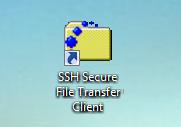
There will be another icon for SSH Secure Shell Client, but we won't be using
that
When you open the program, go to the File menu and select Connect.
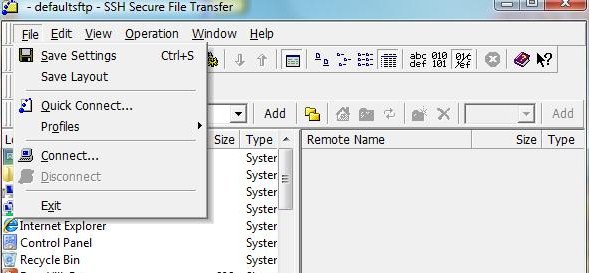
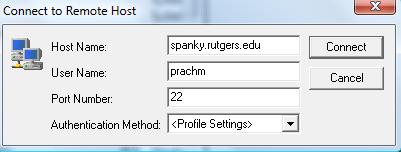
A screen for connecting to the remote host will pop out.
Enter spanky.rutgers.edu
as the name of the host and your NetID as the User Name and click on Connect.
Enter 22 for Port Number if required.
Next, you will see a popup that asks if you would like to save the new
host key to local database. Click on Yes.
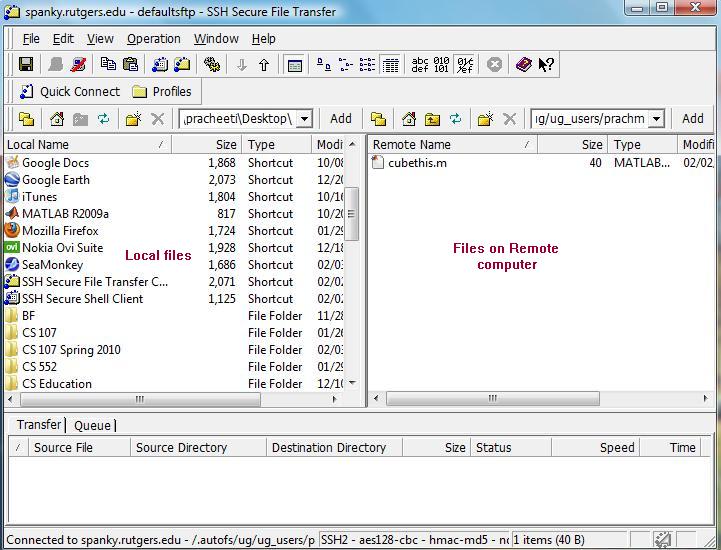
Enter your Password and you will be able to see the files on your local
computer in the left panel and files on the remote computer in the
right hand panel.
To transfer files, all you have to do is select the file and drag and drop it between the local
and remote computer windows.
After you are done, go to File menu
and click on Disconnect to
close the session